Step 1 of 11
Open TRAKCAST
Launch TRAKCAST and locate the Serato Live Playlist URL field. Leave TRAKCAST open while you configure Serato.

Step 2 of 11
Open History in Serato DJ Pro
Launch Serato DJ Pro and open the History panel.

Step 3 of 11
Find Live Playlists
In the History section, locate the Live Playlists option.

Step 4 of 11
Open the Live Playlists setup
Follow the Serato Live Playlists instructions to access your playlist settings.
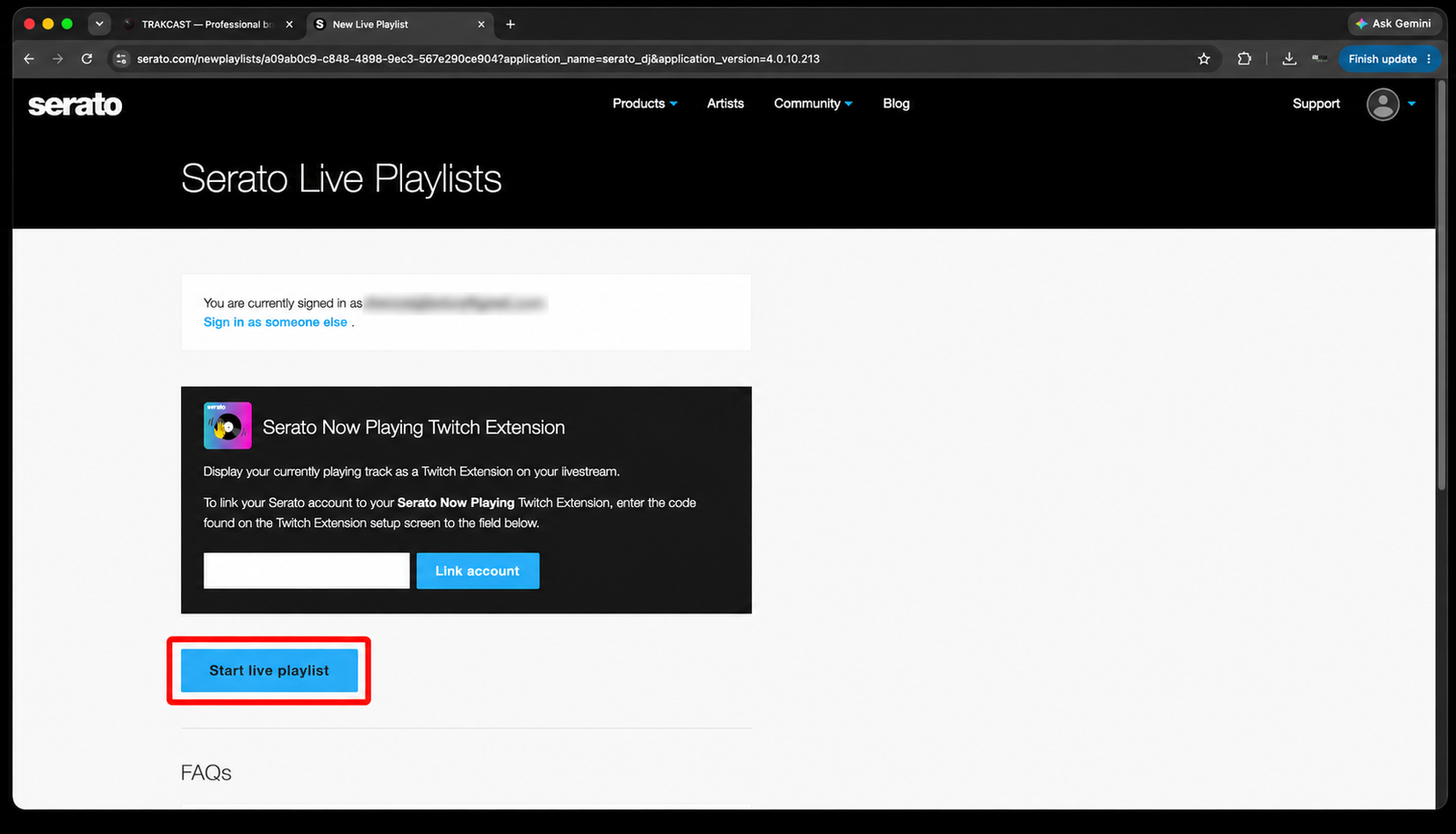
Step 5 of 11
Edit your playlist details
Open the playlist editing options and review the playlist details.
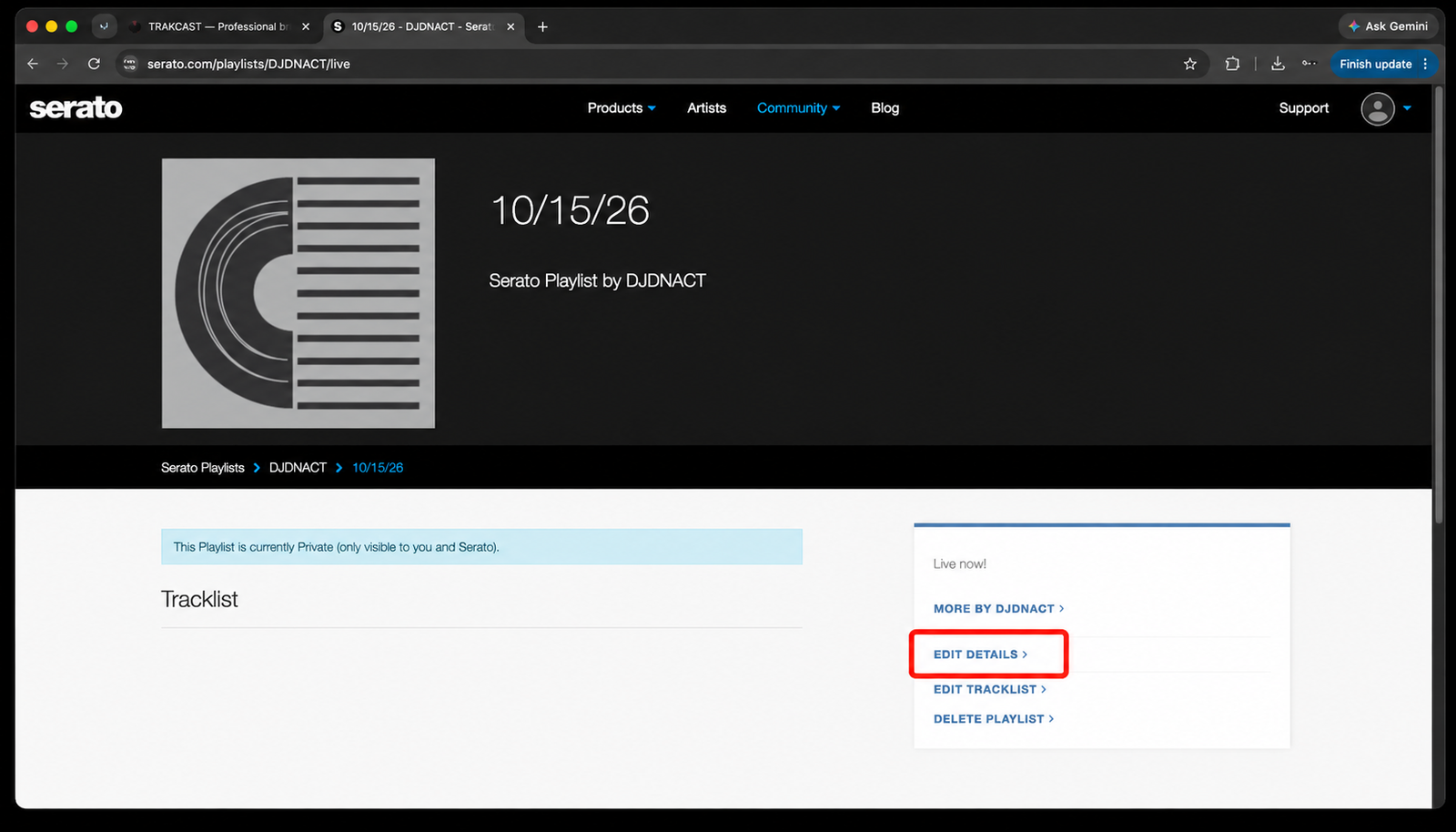
Step 6 of 11
Review playlist privacy
Check the playlist visibility settings. TRAKCAST needs a publicly accessible Live Playlist URL to read your current track information.

Step 7 of 11
Save your changes
Save your playlist settings before proceeding.

Step 8 of 11
Copy your Live Playlist URL
Copy the URL from your browser’s address bar. You’ll paste this URL into TRAKCAST in the next step.
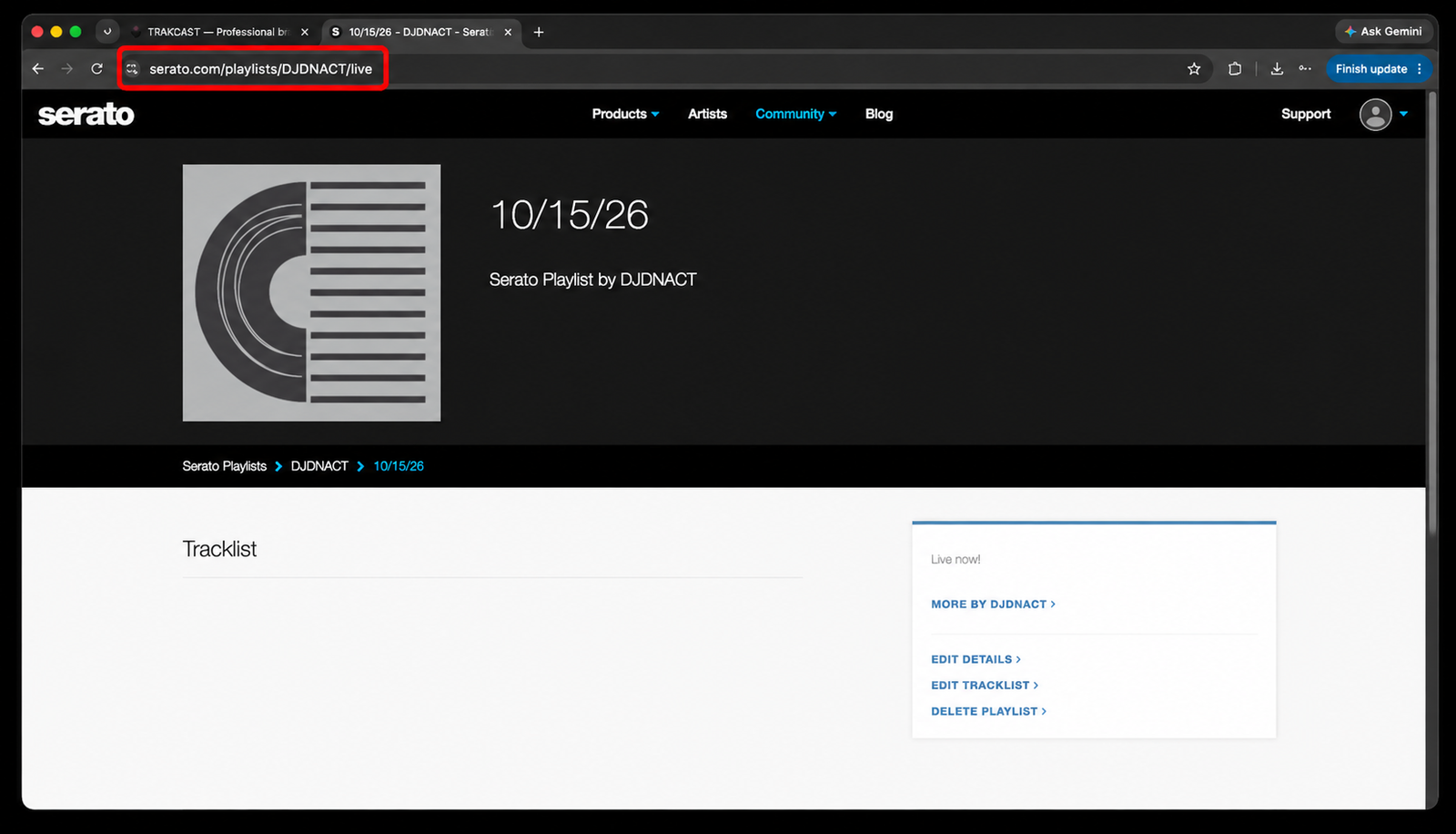
Step 9 of 11
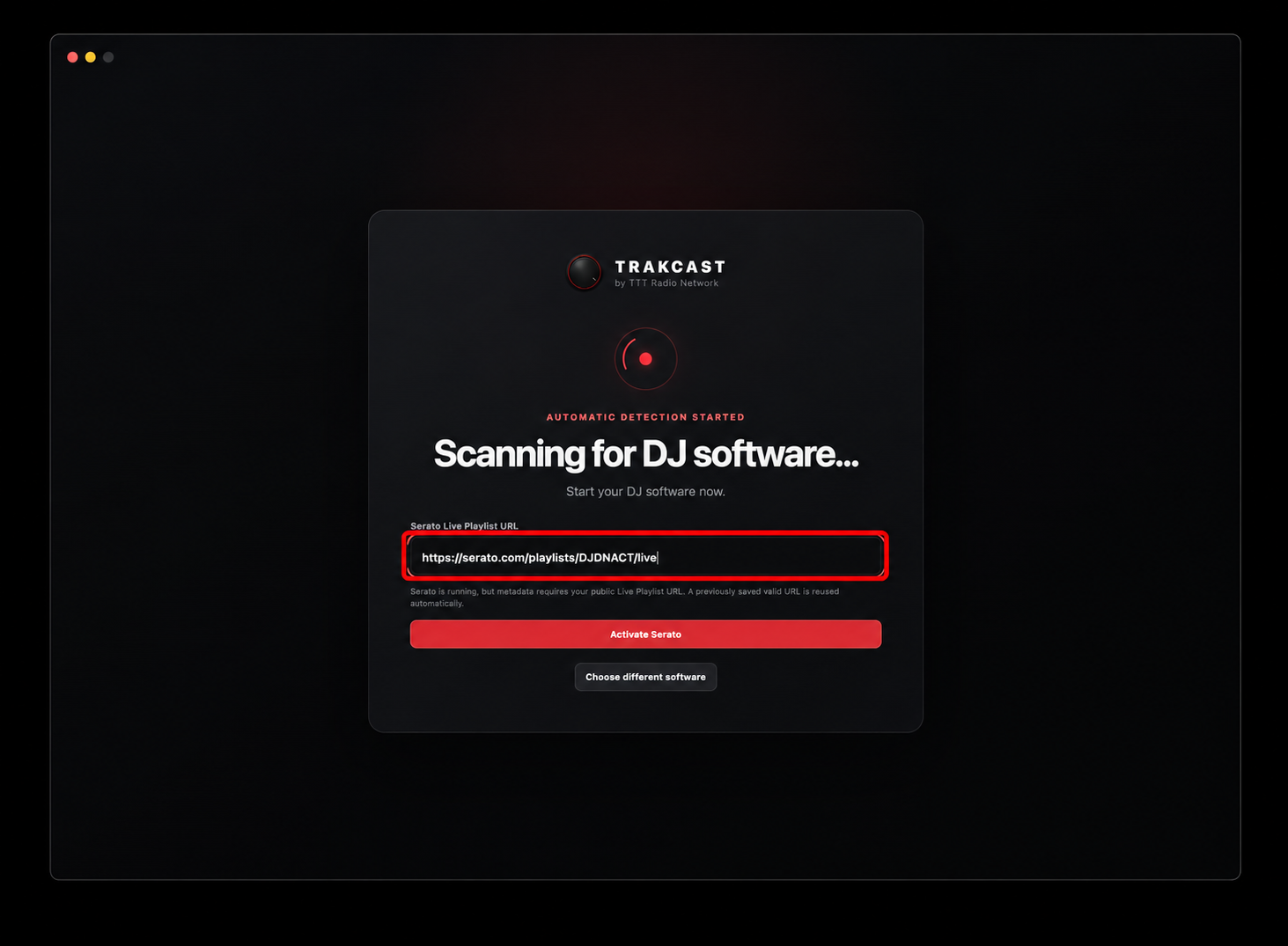
Enter Your Serato Live Playlist URL
Return to TRAKCAST and paste the Live Playlist URL you copied into the Serato Live Playlist field.
Step 10 of 11
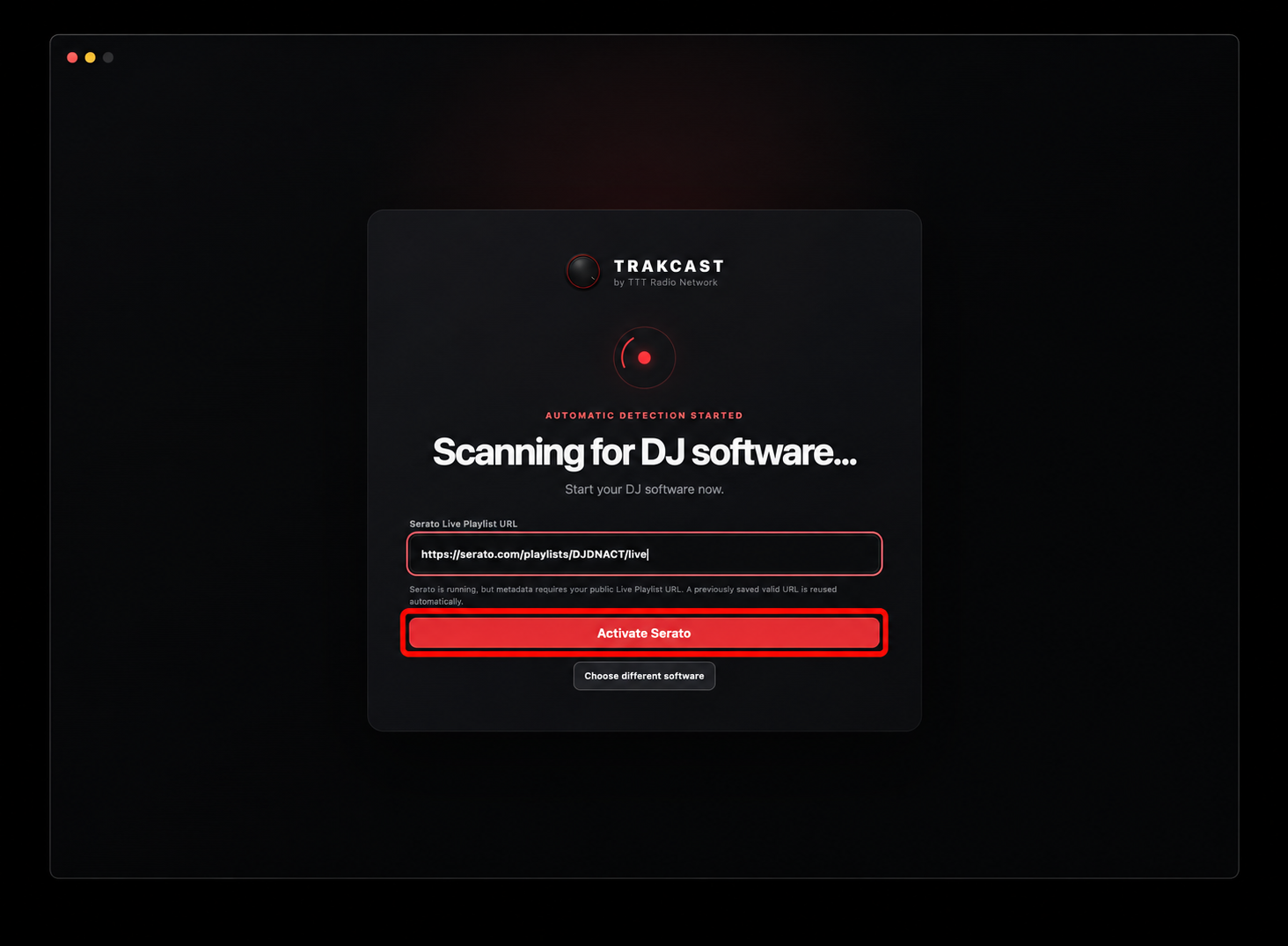
Activate Serato
Click Activate Serato to start detection.
Step 11 of 11
Serato DJ Pro Detected
TRAKCAST recognizes Serato DJ Pro and activates the metadata source. The Broadcast dashboard will open automatically.

Need more help? Contact TRAKCAST Support.